

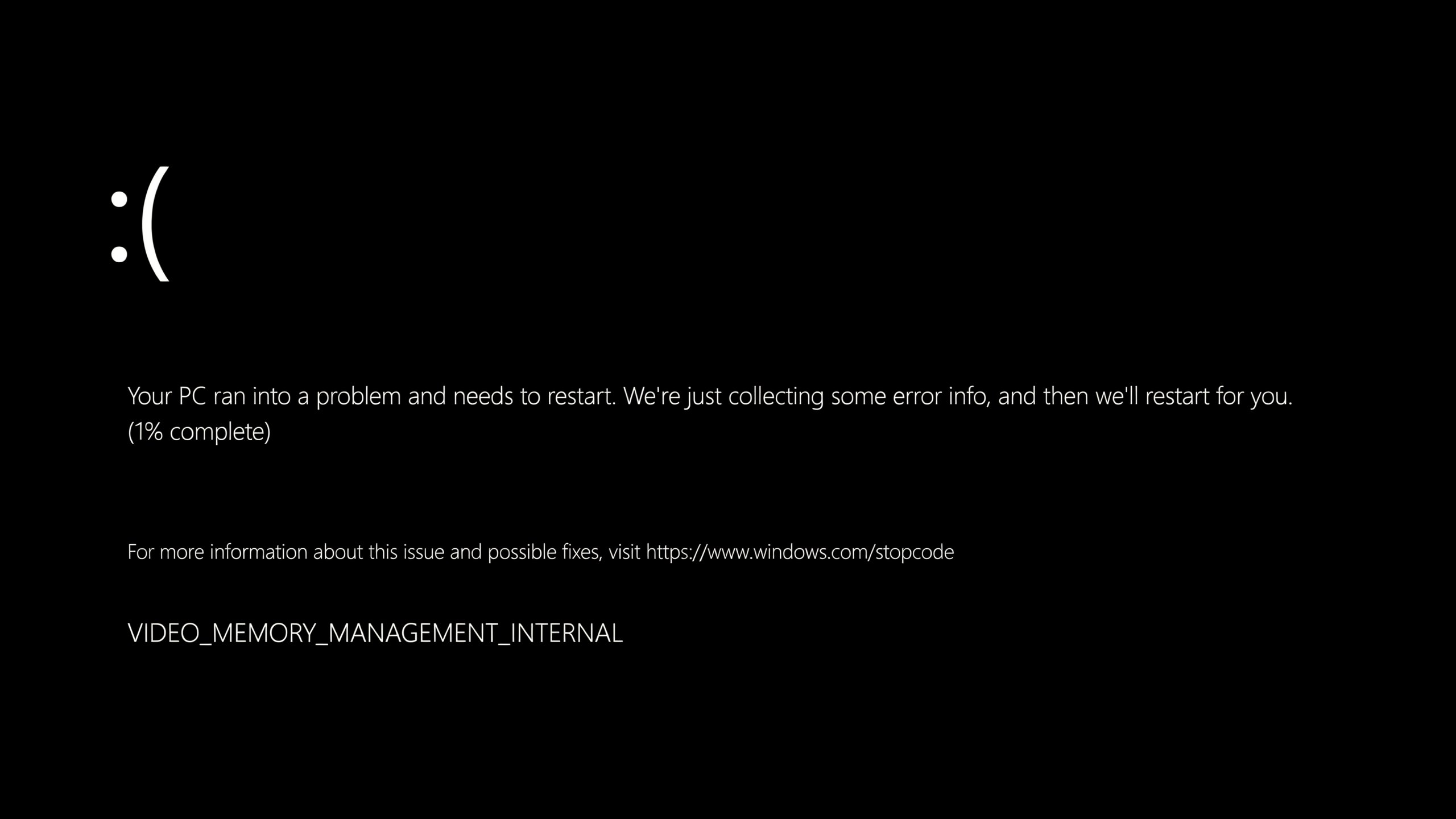
If a Blue Screen has suddenly appeared on your PC displaying the “Video Memory Management Internal” error and the “0x0000010E” stop code, do not panic. This is a common Windows crash, and in most cases, you can fix it yourself without a technician’s help. In this guide, we will explain what this error is in simple terms and provide a step-by-step guide on how to fix it.
What is Video Memory Management Internal Error?
“Video Memory Management Internal” is a Blue Screen of Death (BSOD) error. It occurs when the Windows video memory manager detects a problem it cannot resolve on its own. When this happens, Windows shuts down automatically and your PC restarts to prevent further damage or data loss.
The stop code for this error is 0x0000010E, and it is primarily associated with the graphics card driver. In many cases, the crash is caused by a system file named dxgmms2.sys — part of the DirectX Graphics Memory Management System, which controls how your GPU handles memory. When a faulty or outdated graphics driver causes issues with this file, Windows displays this BSOD.
This error is not caused solely by the graphics card. There can be other reasons for this error as well, such as…
- Outdated, corrupt, or incompatible GPU drivers
- Corrupt or missing Windows system files
- Faulty or failing RAM
- Outdated version of Windows
- Overclocking of GPU or RAM
- Malware or virus infection
- Conflict with recently installed software
- Hard drive or SSD failure
The good news is that you don’t need a technical background to fix most of these issues. Let’s look at these solutions one by one, starting with the easiest ones.
How to Fix Video Memory Management Internal Error
1. Restart Your PC
It sounds very simple, but sometimes it actually works. Even a minor glitch in the video memory manager can trigger this error. Shut down your PC completely, wait for about 30 seconds, and then turn it back on. If the error does not recur, the problem is resolved. If it does, proceed to the next step.
2. Boot into Safe Mode
If your PC keeps crashing, start it in ‘Safe Mode’. In Safe Mode, Windows loads only essential drivers and programs, preventing most third-party software and drivers from causing interference. This provides a stable environment for you to try the solutions mentioned below.
To enter Safe Mode:
- Restart your PC and interrupt the startup process three times in a row to trigger ‘Automatic Repair’.
- On the recovery screen, go to Troubleshoot > Advanced Options > Startup Settings and then click Restart.
- After the PC restarts, press 4 or F4 to boot into Safe Mode.
3. Update or Roll Back Graphics Driver
This error is mostly related to the graphics driver, so this solution is the most likely to resolve your problem.
To update the driver:
- Right-click the Start button and open Device Manager.
- Expand Display adapter and right-click on your graphics card.
- Select ‘Update driver‘, then choose ‘Search automatically for drivers‘.
- Restart the PC after the update is complete.
If the error started immediately after updating the driver, roll back the driver instead:
- In Device Manager, right-click on your graphics card and open Properties.
- Go to the ‘Driver‘ tab and click on ‘Roll Back Driver‘ (this option is available only if a previous version of the driver exists).
4. Run System File Checker and DISM
Corrupt system files can also cause this error. Windows has built-in tools to locate and repair these corrupt system files.
- Open Command Prompt as an administrator.
- Type ‘sfc /scannow‘ and press Enter. Let it complete fully; this may take a few minutes.
- After completion, run DISM /Online /Cleanup-Image /RestoreHealth and press Enter.
- Restart the PC after both scans are complete.
5. Check Your RAM for errors
Faulty RAM is also a common cause of this crash, yet it is often overlooked. Windows includes a free, built-in tool to check for this.
- Press the Windows key, type “Windows Memory Diagnostic,” and open it.
- Choose “Restart now and check for problems”.
- Your PC will restart automatically and run the test on its own; then, it will reboot and display the results.
For a more thorough check, you can also try MemTest86—a free third-party tool that runs multiple passes and often detects issues that the built-in tool misses.
6. Check Your Hard Drive or SSD for Errors
A failing drive can corrupt files essential for video memory management. Run a disk check to investigate this possibility.
- Open Command Prompt as Administrator.
- Type
chkdsk C: /f /rand press Enter. - If prompted, type Y to schedule the scan on the next restart, then restart your PC.
7. Update Windows
Microsoft fixes issues related to drivers and memory management through Windows updates. Therefore, updating Windows is the best solution.
Go to Settings > Windows Update > Check for updates, install any available updates, and then restart your PC.
8. Turn Off GPU or RAM Overclocking
If you have overclocked your graphics card or RAM for better performance, the hardware is forced to operate beyond its stable limits, which can lead to memory-related errors. Open your overclocking software or BIOS settings and reset the GPU and RAM to their default clock speeds.
9. Scan for Malware
Malware can interfere with system files and drivers, potentially causing this error. Perform a full scan using Windows Security (Windows Defender) or a trusted antivirus program and remove any threats found.
10. Uninstall Recently Installed Software
If this error started appearing immediately after installing a new program, try uninstalling it to see if the crashing stops. Go to Settings > Apps, locate the program, and click Uninstall.
11. Reset Your PC (Last Resort)
If the methods mentioned above do not work, resetting Windows is the last resort. This removes corrupted system files and settings but keeps your personal files safe. Go to Settings > System > Recovery > Reset this PC and select “Keep my files.” Be sure to back up important data before starting.
Prevention Tips
- Always keep your graphics drivers updated.
- Install Windows updates regularly.
- Avoid overclocking your RAM or GPU.
- Run malware scans every few weeks, especially if you frequently download software.
- Check the health of your RAM and drives every few months using built-in Windows tools.
- Avoid installing excessive or unverified software, especially tools like “Driver Booster” from unknown sources.
Conclusion
Although the “Video Memory Management Internal (0x10E)” error might seem intimidating, in most cases, it can be fixed without requiring advanced technical skills.
Start by restarting your computer, then update or roll back your graphics driver, run SFC and DISM scans, and check your RAM or drive for errors. Keeping your drivers and Windows updated and avoiding unstable overclocks.
