

If your Windows computer has slowed down or is running low on disk space, learning how to delete temporary files in Windows can help free up disk space and improve your PC’s performance.
Temporary files (or “Temp Files”) are files created by Windows, applications, and browsers that are not permanently saved. Browser history, cache files, and remnants of update installers are all examples of temporary files.
In today’s guide, we will learn how to delete temp files in Windows—specifically, why these files are created and how to remove them safely. We will also explore various methods, ranging from manual deletion to using automatic cleaners.
What are Temporary Files in Windows?
Temporary files are files created by Windows, installed applications, and web browsers while performing tasks. These files become unnecessary once the task is complete, but if you keep them on your computer, they will consume storage space.
Where are temporary files stored in Windows?
In Windows, temporary files are usually located in these locations:
- C:\Windows\Temp (Windows temporary folder)
- C:\Users[YourUsername]\AppData\Local\Temp (User temporary folder)
- C:\Users[YourUsername]\AppData\Local\Low\Temp
- Browser Cache (Cache of Chrome, Firefox, Edge )
- Downloads Folder (Old downloads)
- Recycle Bin (deleted files)
How to Delete Temporary Files in Windows?
Let’s now find out how to delete temporary files in computer. Today, we will cover four methods, ranging from beginner to advanced levels.
1. Windows Storage Settings
This is the simplest and safest method!
- Open Settings by pressing Windows + I key
- Click on “System” option from left side.
- Select “Storage” option.
- You will see “Temporary Files” – click on it.
- Click on “Remove files” button
- A confirmation will appear – click “continue”.
2. Disk Cleanup Tool (Windows Built-in)
Windows has a built-in Disk Cleanup tool that can delete temporary files.
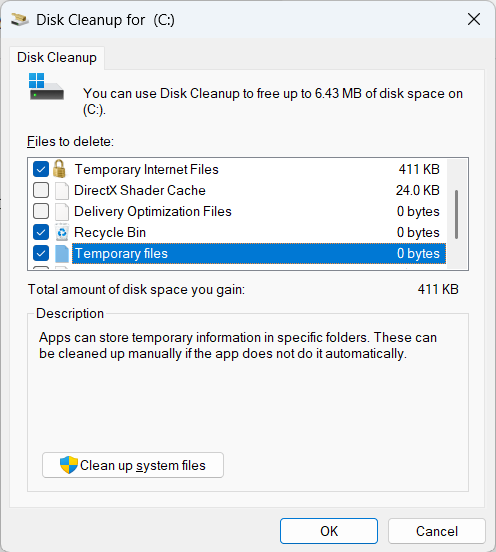
- Press Windows + S and type “Disk Cleanup”
- Open “Disk Cleanup” application
- Select Drive (usually C: Drive)
- Select these checkboxes:
- Temporary Internet Files
- Temporary files
- Recycle Bin
- Windows Update Cleanup
- Downloaded Program Files
- Click on “ok” button
- Confirm “Delete Files”
3. Manual Delete – From Temp Folder
If you do not want to use the methods mentioned above, you can delete the temporary files manually from windows temp folder.
- Open File Explorer by pressing Windows + E
- Type
C:\Windows\Tempin the address bar and hit enter. - Select all files by pressing Ctrl + A.
- Right-click and click “Delete”.
- Now, go to the location
C:\Users\YourUsername\AppData\Local\Tempby typing it into the address bar. - Follow the same process here as well (Ctrl + A → Delete).
If you wish, you can delete the temp files using Command Prompt by running the commands listed below one by one.
del /q /f /s C:\Windows\Temp\*.*
del /q /f /s C:\Users\YourUsername\AppData\Local\Temp\*.*
4. Schedule Automatic Cleanup
You can schedule Windows to automatically delete temporary files.
- Open settings by pressing Windows + I key.
- Go to “System” → “Storage”
- Click on “Storage Sense” option
- Turn on “Storage Sense”.
- Click “Configure Storage Sense or run it now”
- Configure these settings:
- Run Storage Sense automatically (Turn ON)
- Select Run frequency (Daily/Weekly/Monthly)
- Delete files in Recycle Bin: 30 days
- You can cleanup immediately from the “Cleanup now” button.
Now, Storage Sense will automatically keep deleting temporary files!
Prevention Tips
- Turn on Storage Sense: Enable Storage Sense to automatically delete temporary files and keep your storage clean automatically.
- Delete temporary files periodically: To maintain good system performance, clear out temporary files every few weeks using Windows settings, Disk Cleanup, or Storage Sense.
- Empty the Recycle Bin regularly: Files in the Recycle Bin continue to occupy storage space until they are permanently deleted.
- Restart your PC regularly: Restarting Windows removes many temporary system files and prevents the unnecessary accumulation of temporary files.
FAQs
1. How to permanently delete temporary files on Windows 11?
Ans: To permanently delete temporary files, first open the ‘Run’ dialog box by pressing Win + R, then type %temp% and press Enter. Select all the files and press Shift + Delete to delete them permanently. Next, return to the ‘Run’ dialog box, run the temp and prefetch commands, and delete all the files found there.
2. Is it safe to delete Windows temp files?
Ans: Yes, it is completely safe to delete temporary files in Windows. These files are intended for short-term use only. Deleting them frees up storage space and improves the PC’s performance.
3. Can we delete temp files permanently?
Ans: Yes, temporary files can be permanently deleted. Once deleted, if Windows or any other application needs temporary files again, they automatically create new ones. Therefore, deleting temporary files is generally safe.
Conclusion
Deleting temporary files is an essential maintenance task. Windows users should perform this regularly if they want to improve system performance, free up disk space, and avoid “storage full” errors.
If you regularly delete temporary files, your computer will always run smoothly, and you will never face disk space issues.