

You might be working on something important on your computer or installing a fresh copy of Windows when, without warning, the screen turns blue and displays an error message: “Attempted Execute of Noexecute Memory,” along with the stop code 0xFC. At that moment, only one question comes to mind: “What just happened?”
This BSOD indicates that a piece of software or a device driver is attempting to execute code from a memory area where code execution is not permitted specifically, from memory designated solely for data storage. Consequently, the system crashes immediately to protect itself.
Interestingly, this error does not occur only during normal Windows usage. Many users also encounter the ‘Attempted Execute of Noexecute Memory’ error while installing Windows 11, causing the installation to halt midway and forcing a restart of the process.
If you are also stuck on this blue screen, this guide will walk you through practical, proven, and beginner-friendly solutions to help fix this BSOD error. Let’s get started.

What is Attempted Execute of Noexecute Memory?
“Attempted Execute of Noexecute Memory” is a BSOD error. It occurs when Windows detects a process or driver attempting to execute code from a memory area where execution is not permitted. In such a situation, Windows immediately crashes the system to ensure its safety and displays the stop code: 0xFC.
This error occurs not only due to software bugs but can also be caused by faulty device drivers, corrupted system files, defective RAM, incompatible hardware, malware, or overclocking. Therefore, the first step in resolving this issue is to identify its exact cause.
Understanding the 0x000000FC Bug Check Code
Bug Check 0x000000FC is a Windows error code indicating that the system detected an attempt to execute code in a memory area not intended for code execution. Windows’ memory protection mechanisms consider such behavior unsafe, and the operating system stops the system.
If Windows ignored this attempt, system memory could become corrupted, sensitive data could be compromised, or malicious code could execute. To prevent further damage, Windows intentionally triggers a BSOD.
What Does “Noexecute Memory” Mean?
Noexecute (NX) memory refers to a portion of memory where data can be stored, but code cannot be executed. Modern processors and Windows security work together to implement this feature.
NX Bit (No Execute Bit)
NX bit is a hardware security feature of the processor that marks specific memory pages as ‘non-executable‘. If any software or driver attempts to execute instructions from non-executable pages, Windows blocks that attempt.
Data Execution Prevention (DEP)
Data Execution Prevention (DEP) is a built-in Windows security technology that, in conjunction with the NX bit, prevents unauthorized code execution. It plays a crucial role in protecting the system against buffer overflows and memory-based attacks.
Protected Memory Regions
In Windows, certain memory areas are reserved solely for storing data; executing code from these protected areas is not permitted. When a faulty driver, application, or hardware component violates this rule, an “Attempted Execute of Noexecute Memory” (0xFC) BSOD error may occur.
What Causes Attempted Execute of Noexecute Memory Error?
There is no single specific cause for this error. It can stem from various reasons, so identifying the exact cause makes it easier to fix.
The most common causes of this error are listed below.
Driver-Related Causes
Device drivers facilitate communication between hardware and Windows. If there is an issue with a driver, memory access errors can occur, potentially leading to ‘Stop Code 0xFC‘.
Outdated or Corrupted Drivers
Outdated, buggy, or faulty drivers can access memory incorrectly. When a driver violates Windows’ memory protection rules, the system displays the “Attempted Execute of Noexecute Memory” BSOD error to ensure security.
This issue typically occurs with graphics card, network adapter, audio, or storage controller drivers.
Incompatible Graphics, Chipset, or Storage Drivers
Sometimes, existing drivers become incompatible following a recent Windows update or upgrade. Incompatible graphics (GPU), chipset, or storage controller drivers can cause memory-related conflicts, potentially leading to a BSOD error.
If this error started after a driver update, rolling back the driver might help.
Hardware-Related Causes
Apart from software, hardware issues are also a common cause of this BSOD. Faulty hardware can lead to incorrect memory operations, causing Windows to crash.
Faulty RAM or Memory Errors
The most common hardware-related cause of this error is a faulty RAM module. If the RAM has bad sectors or the memory has become corrupted, Windows detects invalid memory access and stops the system.
In such cases, it is beneficial to test the RAM using tools like Windows Memory Diagnostic or MemTest86.
CPU or RAM Overclocking
If the CPU or RAM has been overclocked, unstable clock speeds and incorrect voltages can cause memory errors. This instability can trigger a BSOD during heavy workloads or gaming.
If overclocking is enabled, restoring default BIOS settings is a good troubleshooting step.
Hardware Compatibility Issues
This error can occur after installing a new RAM stick, SSD, graphics card, or other hardware, if the hardware is not fully compatible with the motherboard or the Windows version.
In such cases, it is advisable to check hardware compatibility and look for the latest firmware or BIOS updates.
Software-Related Causes
Sometimes, the problem lies with Windows or installed software rather than the hardware. Corrupted files or malicious programs can also affect protected memory.
Malware or Virus Infection
Sometimes, certain malware attempts to make unauthorized changes to system memory. If a malicious process begins accessing or executing code within a protected memory area, the Windows security system may trigger a BSOD.
Therefore, it is always recommended to scan the entire system using up-to-date antivirus software.
Corrupted Windows System Files
Memory management may fail to function correctly if Windows system files are missing or corrupted. This can lead to kernel-level errors, resulting in the “Attempted Execute of Noexecute Memory” BSOD error.
In such cases, SFC and DISM commands help repair the system files.
Recently Installed Software or Windows Updates
If this error appeared after installing a new application or a recent Windows update, the software might be conflicting with system drivers.
Uninstalling the problematic software, using System Restore, or rolling back the recent update could help resolve this issue.
How to Fix Attempted Execute of Noexecute Memory
Now that we know why this BSOD occurs, the next step is to fix the problem. Try the solutions listed below one by one; they are arranged in order from the easiest to the most advanced.
Fix 1: Restart Your PC and Disconnect External Devices
Sometimes, the “Attempted Execute of No-Execute Memory” error can occur simply due to a temporary conflict between drivers or a hardware communication issue. Therefore, the first step is to completely restart your PC.
Disconnect all unnecessary external devices before restarting, such as:
- USB drives
- External HDD / SSD
- Printer
- Webcam
- Gaming Controller
- Docking Station
Keep only the keyboard and mouse connected. If the BSOD disappears after restarting, the issue might be related to an external device or its driver.
Fix 2: Run Windows Memory Diagnostic Tool
If this error keeps occurring, the next step is to test the RAM. Faulty memory is a common cause of this BSOD.
Check Your RAM for Errors
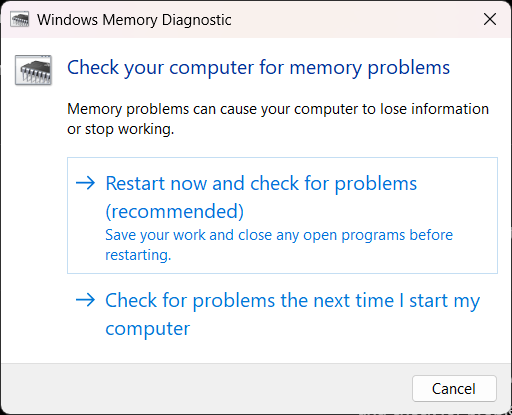
- Press Windows + S.
- Search for Windows Memory Diagnostic.
- Open the tool and select “Restart now and check for problems (Recommended)”.
- The PC will restart, and the RAM will be scanned automatically.
- After the scan is complete, Windows will boot normally.
If any memory-related issue is detected, reset the RAM module properly or consider replacing it.
Fix 3: Update or Roll Back Device Drivers
Corrupted and incompatible drivers are also primary causes of ‘Stop Code 0xFC‘. Therefore, update all necessary drivers and roll back any problematic drivers.
Update Drivers Using Device Manager
- Press Windows + X.
- Open Device manager.
- Right-click on the device that has the yellow warning icon.
- Select Update driver.
- Select ‘Search automatically for drivers’
- Allow the available update to install.
First, check and update the graphics, chipset, storage controller, and network drivers.
Roll Back a Problematic Driver
If this BSOD error started after a driver update:
- Open Device Manager.
- Right-click on the problematic device and open Properties.
- Select Driver tab.
- Click on Roll Back Driver button.
- Restart the PC.
Fix 4: Repair Corrupted Windows Files Using SFC and DISM
Corrupted Windows files can also affect memory management. These files can be automatically repaired using Windows’ built-in repair tools.
Run the SFC Scan
- Search for ‘CMD’ in the Start menu.
- Select Run as administrator.
- Enter this command:
sfc /scannowWait for the scan to complete and then restart the PC.
Run the DISM RestoreHealth Command
If the SFC scan does not fix the problem, run this command in the Command Prompt:
DISM /Online /Cleanup-Image /RestoreHealthThe DISM command repairs the Windows image and restores missing or corrupted system components.
Fix 5: Scan Your PC for Malware
Some malware manipulates memory, causing the Windows security mechanism to trigger a BSOD.
Run a Full Windows Security Scan
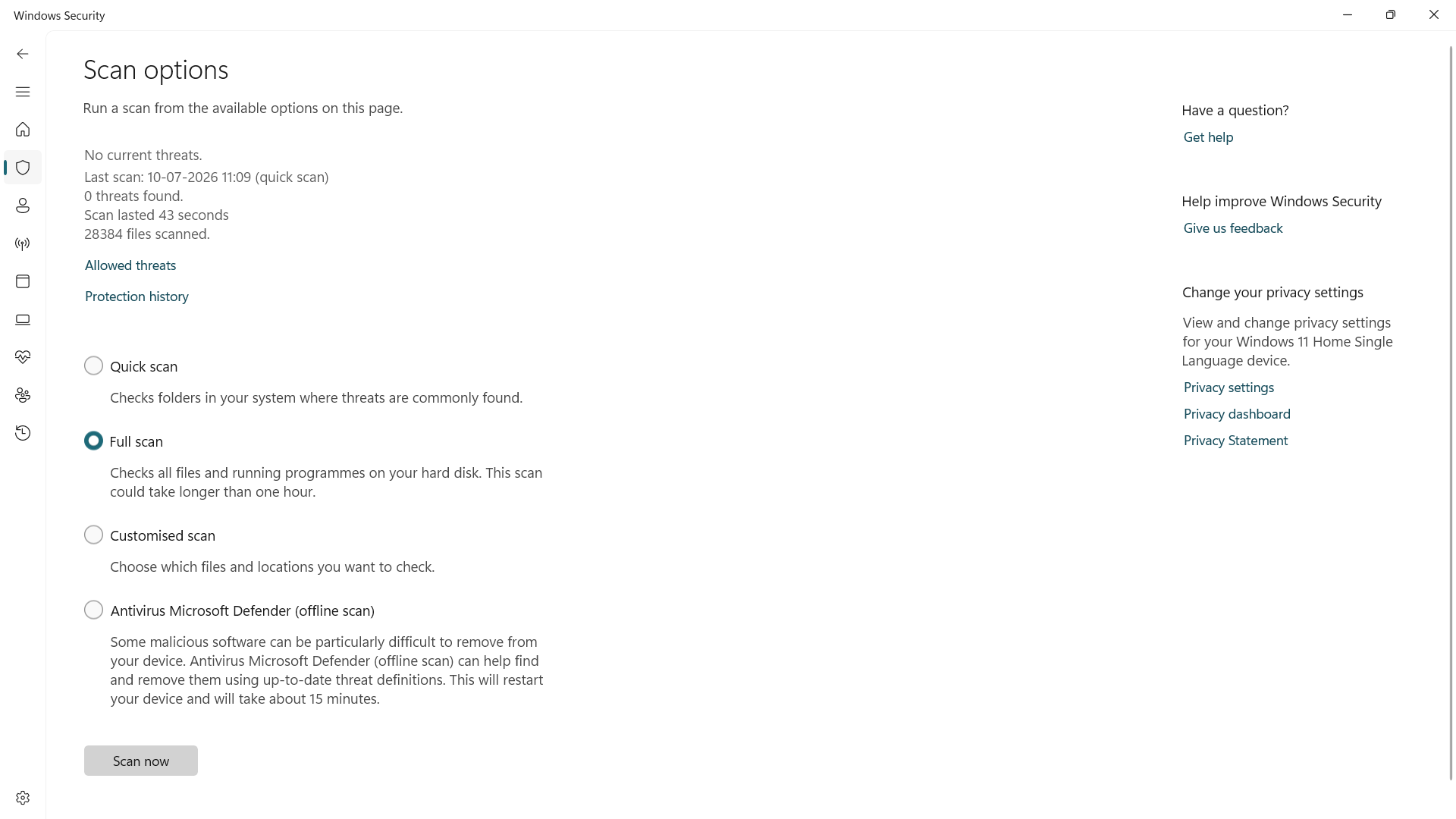
- Open Settings > Privacy & Security > Windows Security.
- Click on Virus & threat protection.
- Select scan options.
- Select ‘Full Scan’.
- Allow the scan to complete and remove the detected threats.
If you are using a third-party antivirus, perform a full system scan with it as well.
Fix 6: Uninstall Recently Installed Software or Hardware
If this error appeared after installing new software or hardware, try reverting that change to check.
Remove Recently Added Programs
- Open Settings > Apps > Installed Apps.
- Locate the recently installed software.
- Click on Uninstall.
- Restart the PC.
This step is particularly useful for antivirus tools, driver utilities, and system optimization software.
Disconnect Newly Installed Hardware
If you have recently installed new RAM, an SSD, a graphics card, or a USB device:
- Temporarily remove the hardware.
- Restart the PC.
- Check whether BSOD returns or not.
If the error does not recur, it means there is a compatibility or hardware issue.
Fix 7: Install the Latest Windows Updates
Microsoft release driver fixes, security patches, and stability improvements through regular updates.
- Open Settings > Windows Update.
- Click on ‘Check for updates’.
- Install available updates.
- Restart the system.
Check for Optional Driver Updates
Go to Windows Update page: Advanced options → Optional Updates.
Additionally, install the hardware driver updates available here; these are particularly useful for chipset and graphics drivers.
Fix 8: Disable Overclocking in BIOS/UEFI
If the CPU or RAM has been overclocked, unstable frequencies can cause memory-related BSOD issues.
Restore BIOS Default Settings
- Restart the PC.
- Enter BIOS/UEFI (usually Del, F2, or F10).
- Select Load Optimized Defaults or Load Setup Defaults option.
- Save the changes and restart.
This will revert CPU and RAM to the manufacturer-recommended settings.
Fix 9: Use System Restore or Reset This PC
If the Attempted Execute of Noexecute Memory error persists even after trying all the methods mentioned above, restoring or resetting Windows remains the only option.
Restore Windows to an Earlier State
If System Restore is already enabled, then:
- Press Windows + S.
- Search for “Create a restore point”.
- Click on “System Restore”.
- Select the restore point from before the error occurred.
- Allow the restore process to complete.
System Restore reverts installed programs and system settings to a previous stable state.
Reset Windows as a Last Resort
If restoring also doesn’t work:
- Open Settings > System > Recovery.
- Select ‘Reset this PC’.
- First, select the ‘Keep my files‘ option.
- Follow the instructions on the screen.
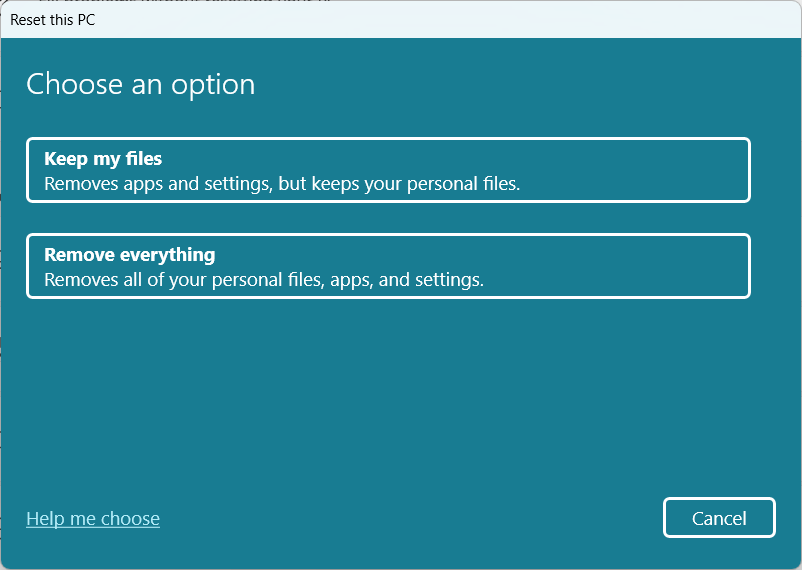
Reset Windows restores Windows to a state resembling a fresh installation and automatically fixes many deep-seated software issues. If you encounter the Attempted Execute of Noexecute Memory error while installing Windows 11, check the installation USB, BIOS settings, and hardware compatibility before performing a reset.
How to Prevent Attempted Execute of Noexecute Memory BSOD Error
Once this issue is resolved, you can significantly reduce the likelihood of it happening again in the future by adopting a few simple maintenance habits.
Keep Windows and Drivers Updated
Outdated Windows builds and device drivers can cause compatibility issues, potentially leading to memory-related BSOD errors. So:
- Install Windows updates regularly.
- Keep graphics, chipset, storage, and network drivers updated to the latest versions.
- Always download driver updates from trusted sources or the hardware manufacturer’s official website.
An updated system is more stable and has fewer security vulnerabilities.
Monitor RAM Health
Faulty RAM is a common hardware-related cause of ‘Stop Code 0xFC‘. If you are experiencing issues such as sudden crashes, system freezes, or recurring BSODs, be sure to check the health of your RAM.
Every few months:
- Run Windows Memory Diagnostic.
- If the problem recurs, use advanced memory testing tools like MemTest86.
- Place the RAM module correctly in its slot and keep it dust-free.
Early detection allows for the timely identification of hardware malfunctions.
Install Software Only from Trusted Sources
Cracked applications or Software downloaded from unknown websites can conflict with system files and drivers. Some malicious programs can even target secure memory, potentially leading to a BSOD (Blue Screen of Death) issue.
To stay safe:
- Install software only from official websites or the Microsoft Store.
- Avoid pirated software and unknown executable files.
- Keep your trusted antivirus software up to date.
This practice improves both system stability and security.
Avoid Unnecessary Overclocking
Overclocking the CPU, GPU, or RAM beyond necessary limits might improve performance, but it can also compromise system stability. Incorrect clock speeds or voltages can lead to memory-related errors and issues like sudden BSOD (Blue Screen of Death) crashes.
If overclocking isn’t required, sticking to the manufacturer’s default settings in the BIOS is the best option.
Create Regular System Restore Points
Creating a system restore point before updating Windows, installing drivers, or installing major software is a good habit.
If an update or software causes an “Attempted Execute of Noexecute Memory” error or any other BSOD issue, you can restore the system to a previously working state without reinstalling Windows.
Frequently Asked Questions (FAQs)
What causes the Attempted Execute of Noexecute Memory error?
The “Attempted Execute of Noexecute Memory” error occurs when a driver, software, or hardware attempts to execute code from a protected memory area. Common causes include faulty or outdated drivers, defective RAM, corrupted Windows system files, malware infections, hardware compatibility issues, and CPU or RAM overclocking.
How do I fix the 0xFC blue screen error in Windows 11?
To fix Stop Code 0xFC, first restart your PC and disconnect any unnecessary external devices. Next, check the RAM using the Windows Memory Diagnostic tool, update or roll back device drivers, repair corrupt system files by running SFC and DISM commands, scan for malware, and install the latest Windows updates. If the issue persists, you can use System Restore or the “Reset this PC” option.
Why does this error appear while installing Windows 11?
If you encounter the Attempted Execute of Noexecute Memory error while installing Windows 11, the cause could be faulty RAM, incompatible storage or chipset drivers, an outdated BIOS, unsupported hardware, a defective installation USB, or corrupted Windows installation files. Before restarting the installation, test the RAM, check for BIOS updates, use the latest compatible drivers, and recreate the Windows installation media if necessary.
Conclusion
The “Attempted Execute of Noexecute Memory” (Stop Code 0xFC) error is a BSOD that is usually caused by faulty or outdated drivers, defective RAM, corrupted system files, hardware conflicts, malware, or unstable overclocking. In most cases, you do not need to reinstall Windows.
Start with the simplest fixes: restart your PC, disconnect external devices, update or roll back drivers, check your RAM with Windows Memory Diagnostic, and repair system files using SFC and DISM. If the problem continues, run a malware scan, install Windows updates, or use System Restore.
The good news is that most Attempted Execute of Noexecute Memory BSOD errors can be fixed without reinstalling Windows. By following these troubleshooting steps one by one, you have a strong chance of restoring your system to normal operation.